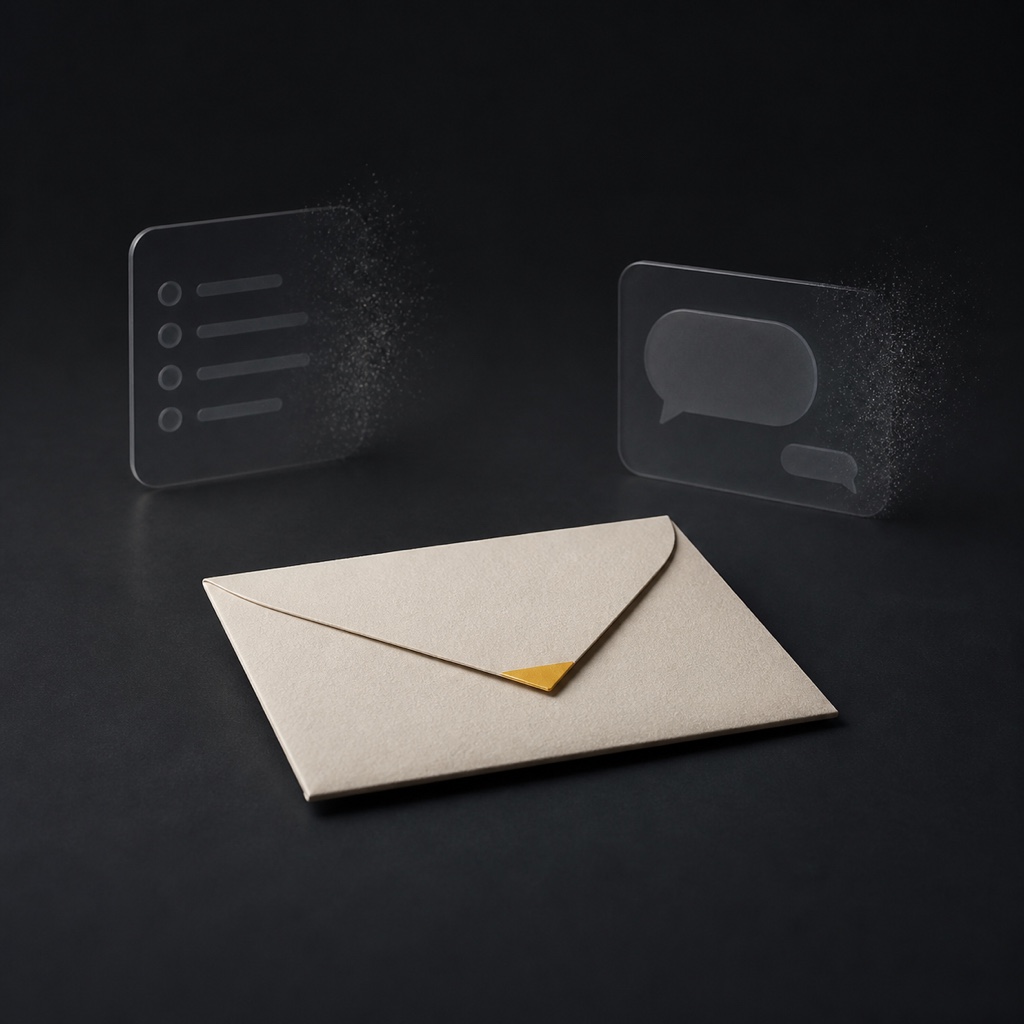
I built a task manager inside Orvia Mail.
It worked. It could turn messages into tasks, track due dates, and keep the work inside the app.
Then I deleted it.
I also built the AI chat box that every software product now seems to want. That worked too. I deleted that as well.
Neither feature crashed. Neither failed a test. I removed them because they were good enough to stay, and keeping them would have changed what Orvia Mail was built to be.
A few years ago, development time acted as a rough filter. Building a feature took long enough that I had to defend the idea before I started.
AI coding tools changed that order.
I can now try several layouts in a day, rewrite part of a data flow, or turn a sketch into a working test before I have fully decided whether the product needs it.
That speed is useful. It also lets weak ideas survive longer than they should.
A weak idea used to look expensive. Now it can look like an afternoon.
Working code is only the first cost
A feature that takes one day to build can remain in an app for years. During that time, it needs a place in the interface, clear text, translations, tests, support, and fixes whenever macOS or a mail service changes.
It also changes how people understand the rest of the product.
Every permanent control asks for attention, even when the user never clicks it. People still have to see it, work out what it does, and decide whether it matters to the message in front of them.
One button is easy to excuse. Enough of them turn a simple app into a set of choices the user never asked to make.
Email already asks people to make the same small decisions all day: read, reply, archive, delete, or come back later. I do not want the app to add another round of decisions before someone can deal with the message.
In Orvia Mail, the message sits on the left. The right side changes with the content.
A meeting invite may show a calendar action. A verification email may put the code within reach. A receipt may show the details that matter. Many messages need nothing there.
This takes more work than adding a fixed row of buttons. A fixed toolbar is easy to build and explain. A changing set of actions requires rules, careful handling of edge cases, and restraint.
The screen looks simpler because I make more of those choices before the user opens the message.
Make the window quieter before making it smaller
I made the same kind of decision when shaping the main window.
The first version used the familiar layout with three columns found in many desktop mail clients. Then I asked whether Orvia Mail really needed all three.
It did not, so I reduced it to two.
Hidden should still mean reachable
Later, I asked the same question about the sidebar.
Did it need to remain visible all the time? Did the accounts, folders, and filters inside it need to keep competing for attention while someone was reading a message?
I decided they did not, so Orvia Mail now hides the sidebar by default.
That created another problem. Anything I hide must still be easy to find when the user needs it.
Removing part of an interface is easy. Making it disappear without making it hard to reach is the actual design work.
The task belongs in Reminders
The task manager seemed like an obvious feature at first.
Email contains work. A client asks for a reply by Friday. An invoice has a due date. A booking belongs on a calendar. Keeping all of that inside the mail app sounded efficient.
Then I built it.
A second source of truth
The feature immediately began asking for more. It needed task lists, priorities, recurring tasks, completed states, filters, notifications, and sync.
That road ended with another task app for users to maintain.
People would have to decide whether a task belonged in Orvia Mail, Reminders, Things, Todoist, or whatever system they already used. They would also have to remember which app held the final version.
I had solved the first click and created a second source of truth.
Let the system app own the task
macOS already has mature apps for this work. Apple lets apps create and edit calendar events and reminders through EventKit. Reminders can use accounts such as iCloud, Microsoft Exchange, Google, Yahoo, and AOL. Calendar can use internet accounts and CalDAV. The task or event can therefore follow the account the user already chose instead of remaining trapped inside the mail client. [1]
So I kept the part that email can do well.
Orvia Mail can identify an action in a message. The user can also select the exact text that should become a task. Orvia then adds it to Reminders.
Dates, meetings, and schedules go to Calendar.
Orvia understands the message and handles the transfer. Reminders owns the task after that. Calendar owns the schedule.
The user does not have to learn another task system or wonder which list is the real one.
I do not think one app should own every part of the user’s day. Orvia Mail should be good at email. Reminders should remember. Calendar should schedule.
Building the task manager made Orvia look more complete in a feature table.
Deleting it made the product more honest.
I do not want AI to become the inbox
The AI chat box was harder to delete because it looked like where the market was going.
Google puts Gemini summaries and writing tools inside Gmail. Microsoft gives Outlook a Copilot chat that can answer questions about the inbox and calendar. Once connected, ChatGPT can automatically reference Gmail when it considers the content relevant. [2]
These products point in the same direction. The inbox becomes a large body of context for a general AI assistant.
That can be useful. It also changes the centre of the product.
In a normal mail client, the user opens a message, reads it, and decides what to do.
In an AI-driven inbox, the user starts with a prompt. The model decides which messages matter, which parts to show, and what action to suggest.
Broad questions need broad access
If someone asks, “What did I promise this client last month?”, the model needs more than the email currently on screen. It may need to search months of messages, sent mail, attachments, contacts, and calendar events.
In one mainstream implementation, OpenAI says a connected Google app may create an indexed copy and sync its content so ChatGPT can provide more relevant answers. [3]
That may be a fair choice for someone who explicitly wants an AI agent to manage the inbox.
I do not want it to become the quiet cost of opening a mail app.
Keep AI at the point of need
There is another reason I removed the chat box. ChatGPT and other general AI products are built to be general AI products. If someone wants to run their inbox through an AI assistant, those products will probably do that job better than a smaller copy placed inside an email client.
Orvia Mail does not need to imitate them.
It still uses AI. A long thread may benefit from a summary. A message in another language may need translation. A rough reply may need help.
A two-line message needs none of them.
A personal note does not need a permanent AI panel sitting beside it.
The tools appear when the user asks for them or when the message clearly benefits from them. When the task ends, they leave.
AI has a supporting role in Orvia Mail. It does not become the inbox.
Some people still want to open a message, read it directly, and decide for themselves. I am building for them too.
Not every product needs to reorganize itself around a chat box simply because chat boxes are popular.
The one-month test
Before I build a feature, I ask how often the problem occurs, who has it, and what work the feature will create after launch.
Does it need a new setting?
Does it add another step?
Will I still understand why it exists one year from now?
Then I ask the question that has helped me most:
Would I still build this if it took a month?
AI can make a weak idea seem harmless because the first version takes so little time. Imagining that it would take a month forces me to judge the problem itself.
A brake, not an answer
I still get some of these decisions wrong.
A feature can look small and become important. Another can feel essential for three days and then sit untouched.
The question does not give me the answer. It stops me from treating a quick build as a reason to ship.
The task manager and AI chat box did not pass this test.
Keep the work that belongs to email
Some features did.
Exchange and shared mailbox support passed it. One user could not use Orvia Mail at work because their company ran its own Exchange server.
That was not a small visual improvement. Without the feature, the product could not do its main job for that user.
Server search passed too.
I resent paying for more Mac storage only to fill it with tens of thousands of old Gmail messages that I rarely open. When I set up a new mail client, I only need recent mail stored locally for fast access and offline use.
Messages from years ago do not need to sit on my drive all the time. They can stay on the server until I search for them.
A mail client should not require a complete local archive simply to make old mail discoverable.
Safe Reader needs both privacy and rhythm
Safe Reader was another yes.
The mail clients I tested could block remote content, but many stopped there. The remote tracking was blocked, while the newsletter was left with broken spacing, empty areas, missing images, and text that was never meant to stand on its own.
The privacy setting had done its job. The reading experience had not.
I wanted Safe Reader to solve both problems. It should block remote content that can track an open without making the message worse to read.
I spent a great deal of time working out how to remove those remote parts, keep the content that matters, and rebuild the message with clear type, spacing, line length, and visual order.
I studied reading apps such as Instapaper, especially how they handle type, line length, spacing, and hierarchy in long articles. Then I applied those ideas to email, where the HTML can vary wildly from one sender to another.
Blocking the tracker was only the first half of the work.
The message still had to feel worth reading.
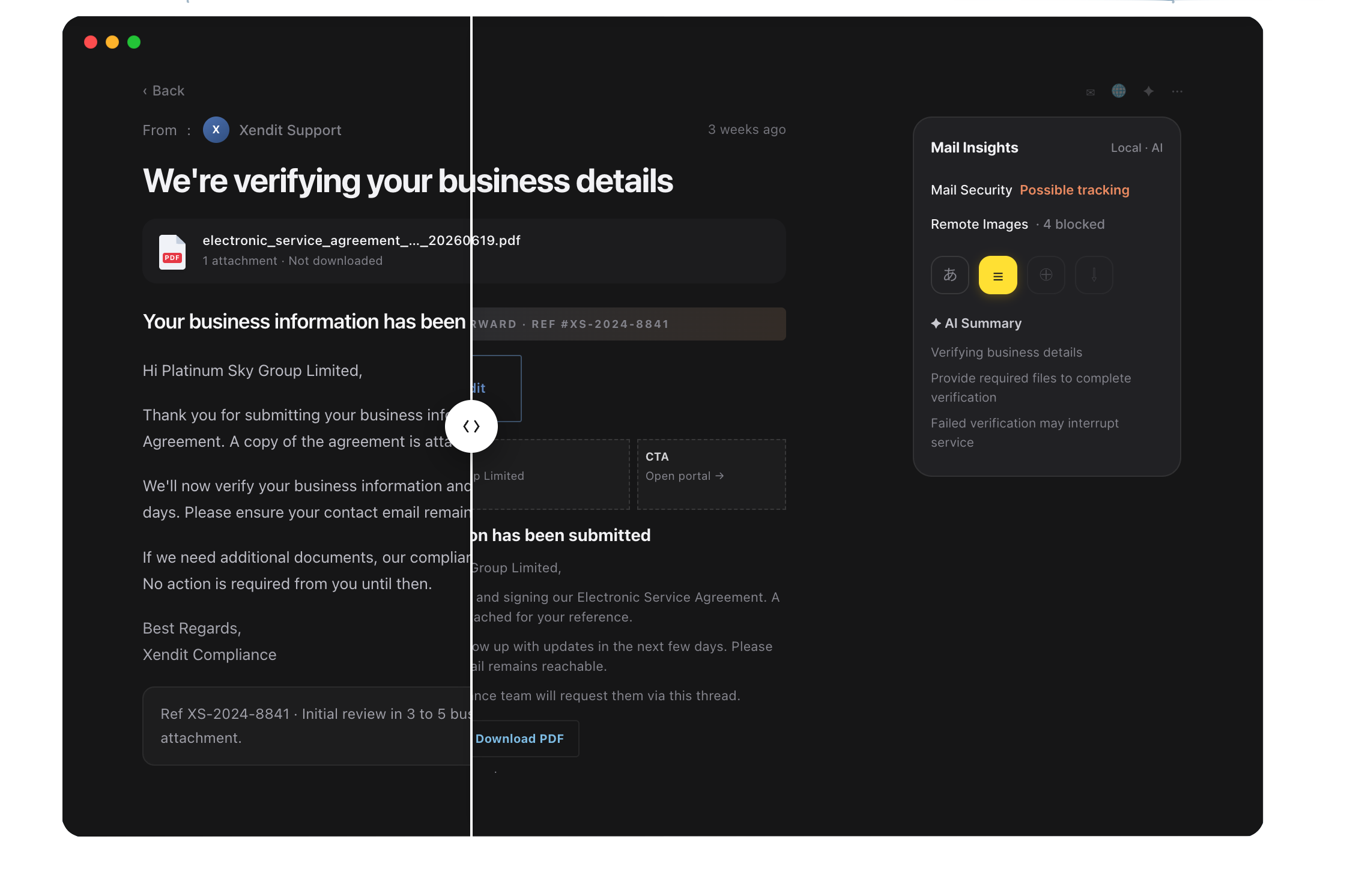
I still consider Safe Reader only half finished.
Email HTML is inconsistent, and every sender structures its content differently. A layout that works well for one newsletter may fail on another.
I keep adjusting the rules as I test more messages. Safe Reader already does more than block remote content, but it has not reached the standard I want.
Exchange support, server search, and Safe Reader all create long-term work.
They also solve problems that belong to email.
That is the line I now try to hold.
Saying no gets harder after release
Once a feature ships, someone may start using it every day.
A small option can become part of a routine. Removing it later may break a workflow or reduce trust, even when few people use it.
That is why saying no before release matters.
A feature can please a group of users today while adding a control that everyone else has to see for years.
A test build can still answer a question
Deleting working code still feels wasteful sometimes. The design is done. The tests pass. The feature may even be useful.
But a test build can answer a useful question without becoming a shipped feature.
The task manager answered one question. Orvia Mail should help move work out of email, not create another place to manage it.
The AI chat box answered another. AI should appear at the point of need, not take over the main window.
Those answers were worth the code.
Orvia Mail will keep growing. I want each release to solve more than it asks people to learn.
Sometimes that means spending days on a feature, using it, and deleting it before anyone else sees it.
Both features worked.
Orvia Mail is better because they never shipped.